Android Security 101: How to Protect Your Personal Data
Our smartphone have become an essential part of our lives storing everything from personal photos and messages to sensitive financial information. With Android being one of the most popular operating systems in the world ensuring its security is more important than ever. Android security play a crucials role in safeguarding your personal data from potential threat whether it malware hacking attempts, or even simple mistakes like downloading apps from untrusted sources.
When it comes to Android security there no one size fits all solution but there are several strategies you can adopt to enhance your device defense. enabling strong passwords to using encryption, these practices help protect your device from cybercriminals & your data safe. some of the essential tips on how to strengthen Android security and protect your privacy.
With so many potential vulnerabilities understanding how to secure your Android device should be a top priority for every user. Whether you are using your Android phone for work shopping or social media taking simple steps can make a huge difference in protecting your personal data. Lets dive into some of the best practices you can follow your Android phone safe and secure increasingly connected world.
Android Security 101: Key Tips to Safeguard Your Personal Data
Android Security is the foundation of keeping your personal data safe on a smartphone that stores email or photos or banking apps & private conversation. Many users rely on default settings but basic default are not enough against modern threats.
Strong Android Security starts with understanding where risks come from and how data leaks happen.
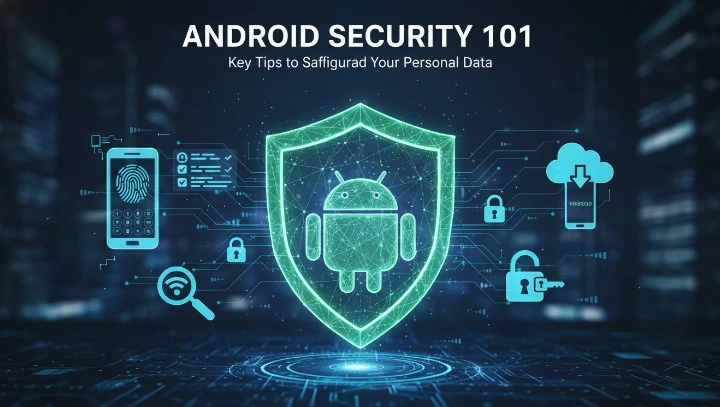
Common risks that affect Android devices..
- Malicious apps downloaded outside the Play Store
- Weak screen locks or no lock at all
- Excessive app permissions
- Outdated Android versions
- Public WiFi usage without protection
safeguard your personal data…
- Always lock your device with a PIN, password, or biometric
- Avoid installing apps from unknown sources
- Keep Android system updates enabled
- Review permissions regularly
These steps improve Android privacy protection and reduce exposure to common attacks.
How to Protect Your Android Device: Essential Security Measures

Essential security measures to enable immediately..
- Screen lock protection
- Go to Settings > Security > Screen lock
- Use a strong PIN or password instead of swipe or pattern
- Biometric security
- Enable fingerprint or face unlock
- Use biometrics only as a secondary option
- Automatic screen lock
- Set auto-lock to 30 seconds or less
Additional Android Security measures..
- Turn off Bluetooth when not in use
- Disable NFC if you do not use contactless payments
- Hide lock screen notifications that show sensitive data
Top Android Security Practices for Protecting Your Personal Information
Android Security best practices focus on limiting access to personal information at every level. Many data leaks happen because apps have more permissions than needed.
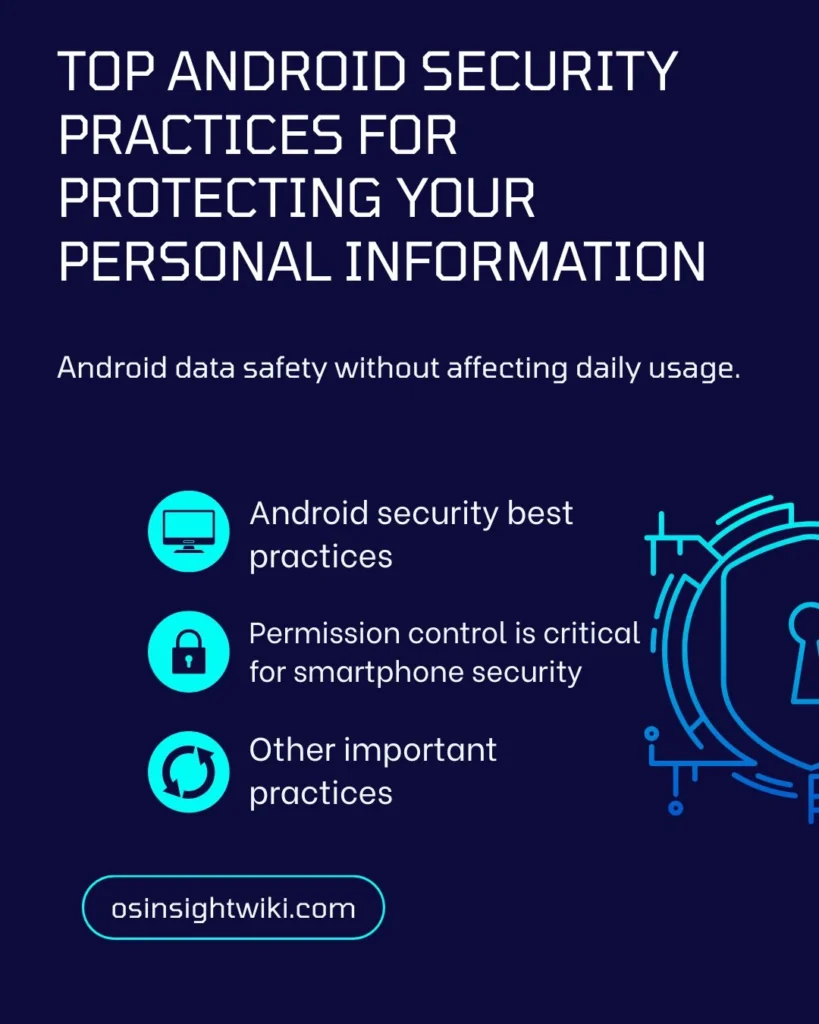
Android security best practices…
- Install apps only from Google Play Store
- Check developer credibility and reviews
- Avoid modded or cracked APK files
Permission control is critical for smartphone security..
- Open Settings > Privacy > Permission manager
- Review access to:
- Location
- Camera
- Microphone
- Contacts
- Set permissions to “Allow only while using the app”
Other important practices..
- Remove unused apps regularly
- Log out of apps that store financial data
- Enable Google Play Protect
These steps improve Android data safety without affecting daily usage.
Comprehensive Guide to Android Security: Safeguard Your Data and Privacy
comprehensive Android Security approach includes both system level & cloud level protection. Many competitors skip cloud security but it is a major data leak source.
System level security setting…
- Settings > Security > Find My Device
- Settings > Security > Device encryption
- Settings > Security > App pinning
Cloud & account security..
- Enable two step verification for Google account
- Review account activity and connected devices
- Remove unknown sessions immediately
Privacy on Android also depends on browser safety..
- Use secure browsers with tracking protection
- Disable autofill for sensitive information
- Clear browsing data regularly
It can be strengthen Android privacy protection across both device and online activity.
Android Privacy Protection: Best Practices for Secure Data Management
Android privacy protection is about controlling how data is collected stored and shared. Many apps collect background data without user awareness.
practice for secure data management..
- Limit background app activity
- Settings > Apps > Background usage
- Disable ad personalization
- Settings > Privacy > Ads
- Turn off usage diagnostics if not needed
Storage protection tips..
- Encrypt SD card if supported
- Avoid storing sensitive files in Downloads folder
- Use built-in Secure Folder if available
Data protection tips that competitors often miss..
- Turn off clipboard access for third party keyboards
- Restrict file access permissions for file managers
- Disable voice assistant wake word on lock screen
Step-by-Step Guide to Boosting Android Security and Protecting Your Data
When it comes to protecting your Android device general advice can only get you so far. a true Android security it is all about taking clear actionable step & followings them in the right order. exact action you need to take to ensure your Android device is secure and your personal data stay safes.
From setting up strong password to configuring privacy setting and choosings the right apps play a crucials role in boosting your phone’s defense against hackers or malware and other security threat. Android security is consistency and applying these steps in the proper sequence.
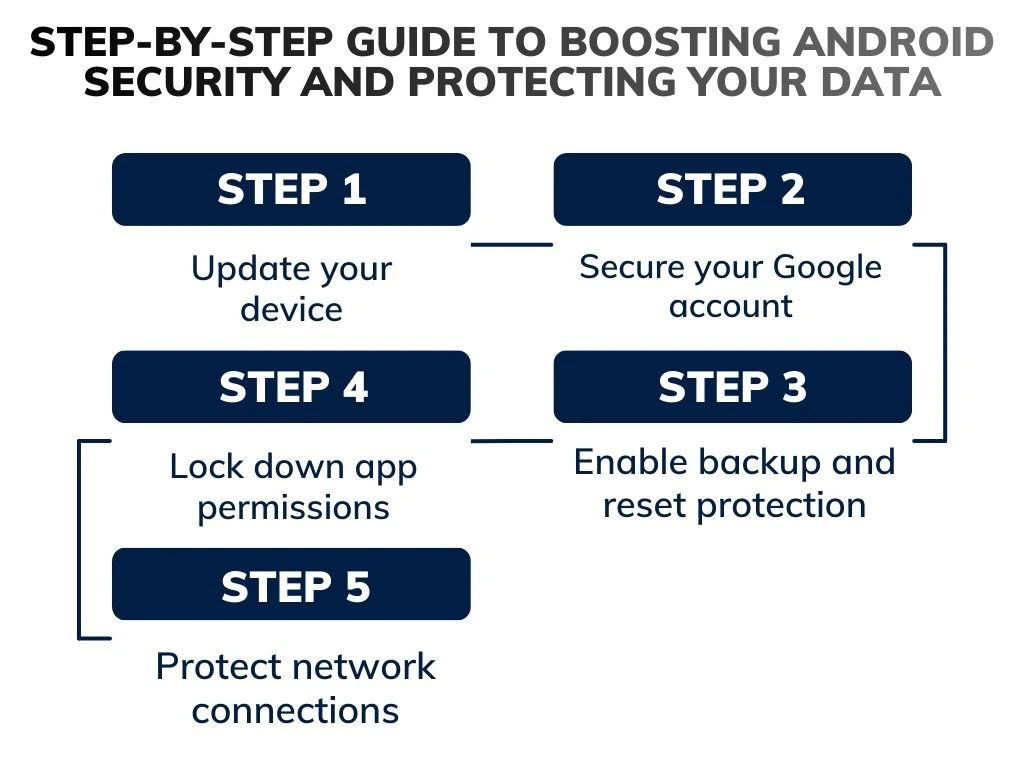
Step 1: Update your device
- Settings > Security and privacy > Updates
- Install all available system and security patches
Step 2: Secure your Google account
- Enable two factor authentication
- Add a recovery phone number and email
Step 3: Lock down app permissions
- Remove location access for social apps
- Block microphone access for unused apps
Step 4: Enable backup and reset protection
- Settings > Google > Backup
- Turn on Factory Reset Protection
Step 5: Protect network connections
- Avoid public WiFi without protection
- Turn off auto connect to open networks
How to Secure Your Android Device: Expert Tips for Privacy Protection
Experts focus on reducing attack surfaces rather than installing random security apps. Android Security becomes stronger with fewer entry points. When it comes to securing your Android device expert agree that the key is not about loading up on random security app but rather reducing your device attacks surface. Simply put Android security becomes much stronger when you minimize the number of ways hacker can gain access to your device. Each entry point whether it not an unprotected app or an outdated system creates a potential vulnerability.
we focus on practical expert approved tips to fortify your Android device without overwhelming you with unnecessary apps or complicated setups. from setting up proper permissions to disabling unused features these steps are all about making your device less attractive to attacker while improving your privacy protection.
Expert level privacy protection tips..
- Disable USB debugging unless actively used
- Turn off developer options when finished
- Restrict app installs to verified sources
Advanced device security settings..
- Enable Safe Browsing in Chrome
- Use DNS over HTTPS if available
- Disable unknown device pairing
Protect your Android phone from physical access..
- Enable auto-lock after failed unlock attempts
- Use lock screen message with contact details
- Disable power menu access on lock screen
Android Data Protection: Top Strategies for Enhanced Device Security
Android data protection it easy to think that malware is the only threat to your personal information. many user overlook the fact that data leaks can occur even without malicious software. Whether it unsecured WiFi connections or apps that can request unnecessary permissions there are several ways your data can be exposed without any obvious signs of a hack.
strategies for enhancing your Android device securitys focusing on both protecting the data stored on your phone & the data you send and receive. from using encryption to managing app permissions and securing your connections these step help you minimize the risk of the data leaks & keeps your personal information are safe.
Top strategies for enhanced security.
- Use encrypted messaging apps
- Avoid sharing personal data through SMS
- Do not save passwords in plain text apps
File and media protection strategies.
- Lock gallery with built-in app lock
- Remove metadata before sharing photos
- Avoid third-party cleaner apps
Backup safety is also important..
- Encrypt cloud backups
- Review what data is backed up
- Avoid public cloud access on shared devices
The Ultimate Guide to Android Security: Keep Your Personal Data Safe
Android Security is not a one time setup. It requires ongoing review and adjustment as apps or threat and features change. something you can set and forget. as apps evolve new threats emerge and features change it is essential to regularly review and adjust your security setting. Many user make the mistake of thinking once they hve set up their device security they re done when in reality maintaining security is an ongoing process.
personal data safe not just today but in the long term. from stayings on top of software updates to making informed decisions about the apps you install we cover how to continuously strengthen your Android devices defense.
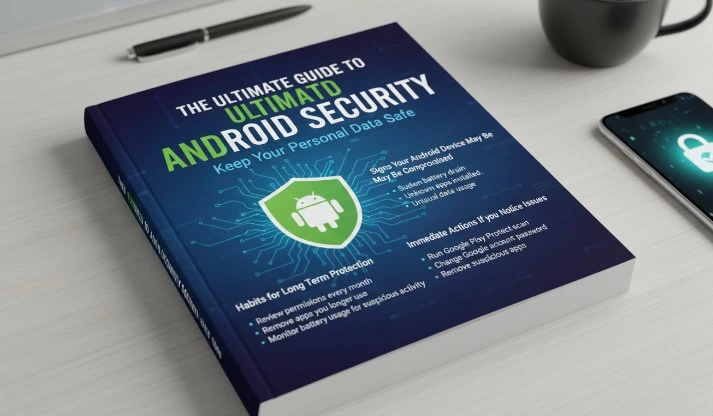
habits for long term protection.
- Review permissions every month
- Remove apps you no longer use
- Monitor battery usage for suspicious activity
Signs your Android device may be compromised.
- Sudden battery drain
- Unknown apps installed
- Unusual data usage
Immediate actions if you notice issues.
- Run Google Play Protect scan
- Change Google account password
- Remove suspicious apps
Essential Android Security Tips for Privacy Protection and Data Safety
Android Security is no longer optional for users who store personal photo or banking details work emails & private conversation on their phone. Every Android device constantly exchanges data through apps or network & background services which makes privacy protection & data safety a daily responsibility rather than a one time setup.
Many users assume that built in protections are enough but real Android Security depends on how the device is configured and used. Simple mistakes like granting unnecessary permissions using weak screen locks or connecting to unsecured WiFi can expose personal data without any warning sign.
Quick checklist for data safety.
- Strong screen lock enabled
- System updates turned on
- App permissions reviewed
- Cloud account secured
- Public Wi-Fi avoided
Privacy focused habit..
- Read permission prompts carefully
- Avoid apps asking unnecessary access
- Keep Bluetooth and location off when unused
Android Security improves when users stay aware and proactive. Protecting personal data is not complex but it requires attention and regular checks.
Conclusion
Android Security plays a major role in protecting personal data on a device that is used every day for communication payments & online access. While Android offers built in protection real privacy and data safety depend on how well users manage settings permission & daily habit.
Simple action such as keeping the system updated reviewing app access securing online connections & protecting cloud account can significantly reduce risk. Android privacy protection is not about using too many tools but about making smart choices that limit exposure to tracking or data leaks & unauthorized access.
FAQs
Q1: How can I protect my personal data?
You can protect personal data by using a strong screen lock, keeping Android Security updates enabled, limiting app permissions, and avoiding unsecured Wi-Fi networks.
Q2: Can someone be watching everything I do on my phone?
Yes, if spyware, malicious apps, or excessive permissions are present, someone could monitor activity, which is why Android Security checks and permission reviews are important.
Q3: How do I make my Android completely private?
You can improve privacy on Android by controlling app permissions, disabling ad tracking, securing your Google account, and keeping Android Security settings properly configured.
Q4: How do I see if my Android is being monitored?
Check for unknown apps, unusual battery drain, high data usage, or apps with suspicious permissions, these can indicate Android Security issues.
Q5: How can I prevent my phone from being tracked?
To prevent tracking, turn off location services when not needed, limit app location access, disable ad personalization, and follow Android security best practices.