How to Configure macOS Firewall for Better Security
Mac operating system is widely known for its strong built_in security features but many users never take full advantage of one of its most important defenses the macOS firewall. your Mac includes a powerful firewall that can control incoming network connections, block unauthorized access, and significantly reduce the risk of cyber threats. simply turning it on is not enough. To the truly protect your system you need to understand how the firewall works and how to configure it correctly for your specific security needs.
How to Configure macOS Firewall for Better Security we will walk through everything you need to know from enabling the firewall to fine tuning advanced settings. You learn why the firewall is essential for safeguarding your device how to manage application permissions and how to block unwanted network traffic without breaking essential services.
We also explore best practices for optimizing firewall rules ensuring compatibility with trusted apps and maintaining strong network security whether you are using your Mac at home or work or on the public Wi-Fi. casual Mac user looking to improve personal security or an IT professional managing multiple devices understanding and properly configuring the firewall can make a significant difference.
How to Configure macOS Firewall for Better Security
macOS includes a builtin firewall designed to control incoming network connections and protect your system from unauthorized access. Proper firewall configuration is one of the most important steps in improving macOS network security especially for users who connect to public Wi-Fi use remote access tools or manage multiple devices.
it works by monitoring inbound traffic and allowing only trusted apps and services to accept connections. When configured correctly it reduces exposure to network-based attacks without affecting everyday usage.
Why macOS Firewall Is Essential for Enhanced Security
firewall security plays a critical role in macOS endpoint security. Without a firewall any open service can potentially accept unwanted network traffic.

Key reason..
- Blocks unauthorized incoming connections on Mac
- Prevents network scans and port probing
- Protects services like file sharing and remote login
- Reduces attack surface on public and office networks
- Supports centralized firewall management in enterprise environments
firewall is especially important when macOS security settings like File Sharing Screen Sharing or SSH or remote management are enabled.
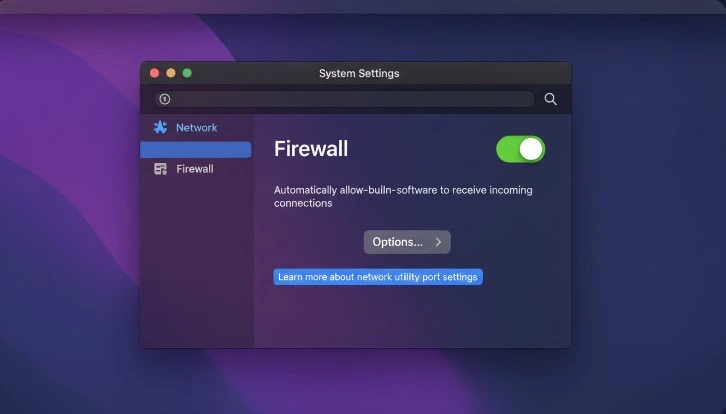
Step-by-Step Guide to Enable the macOS Firewall in System Settings
Enabling the macOS firewall is one of the simplest yet most effective steps you can take to protect your Mac from unauthorized network access. Apple makes this process straightforward through System Settings allowing users to turn on the firewall in just a few clicks. In this section we will guide you the through the exact settings you need to access ensuring the macOS firewall is enabled correctly without affecting normal system functionality.
How to turn on macOS firewall
- Open System Settings
- Go to Network
- Select Firewall
- Click Turn On Firewall
Once enabled the macOS Firewall starts blocking unsolicited incoming connections automatically.
Enable firewall on Mac using Terminal (optional)
For the advanced user you can enable the firewall via Terminal…
sudo /usr/libexec/ApplicationFirewall/socketfilterfw –setglobalstate on
Check firewall status..
sudo /usr/libexec/ApplicationFirewall/socketfilterfw –getglobalstate
This method is useful for automation and macOS firewall management scripts.
Understanding Key macOS Firewall Options and What They Do
macOS firewall settings include several options that control how applications and services handle network traffic. Once the macOS firewall is enabled its key options is essential to getting the right balance between security and usability. macOS provides several firewall controls that determine how incoming connections are handled how apps are allowed to communicate and how your system responds to potential threats. firewall option in simple term explaining what it does and when you should use it to strengthen your mac overall security.
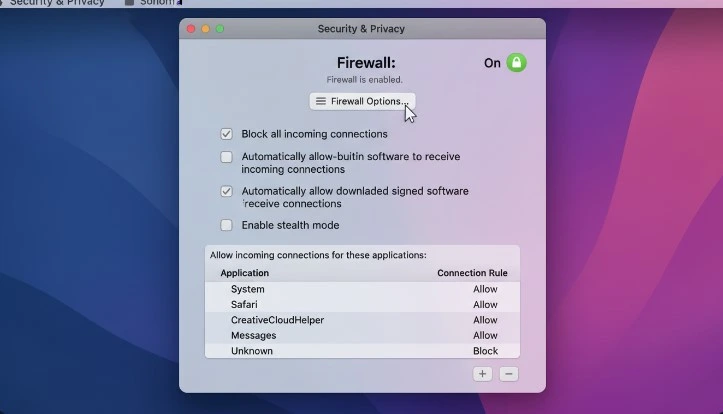
Block all incoming connections
- Blocks all incoming traffic except essential system services
- Recommended for high risk environments
- May break file sharing screen sharing and remote tools
Automatically allow built-in software
- Allows Apple signed services through the macOS Firewall
- Prevents system features from breaking
- Strongly recommended
Automatically allow downloaded signed software
- Allows trusted thirdparty apps
- Reduces frequent firewall prompts
- Improves usability without reducing macOS firewall security
Stealth Mode
- Makes your Mac invisible to network scans
- Prevents ICMP ping responses
- Improves macOS network security on public networks
Enable the Stealth Mode from Firewall Options for better protection.
Best Practices for macOS Firewall Configuration
strong security without impacting performance. Configuring the firewall correctly goes beyond simply enabling it require ensure maximum protection without disrupting everyday use. allowing the trusted applications to blocking unnecessary incoming connection the right firewall setups can greatly reduce security risk.
Recommended practices…
- Always keep macOS Firewall enabled
- Enable Stealth Mode on laptops and mobile devices
- Allow only necessary apps to accept incoming connections
- Review firewall rules regularly
- Disable unused sharing services
- Combine firewall usage with macOS security settings like Gatekeeper and SIP
For businesses standardizing firewall configuration on Mac devices improves compliance and reduces risk.
How to Block Unauthorized Connections on macOS
Block the unauthorizedd connections is a critical step in protecting your Mac from unwanted access and potential security threats. macOS provides built-in firewall controls that allow you to restrict incoming network traffic and prevent unknown apps or services from connecting to your system. macOS firewall to identify manage and block unauthorized connections while ensuring trusted applications continue to work smoothly.
Block incoming connections on Mac manually
- Open System Settings
- Go to Network → Firewall → Options
- Click Add Application
- Select the app you want to block
- Choose Block incoming connections
This specific apps from accepting any inbound traffic.
Use Terminal to block apps
sudo /usr/libexec/ApplicationFirewall/socketfilterfw –add /path/to/app
sudo /usr/libexec/ApplicationFirewall/socketfilterfw –blockapp /path/to/app
it useful for the scripting and remote administration. blocking unused or risky apps improves firewall security significantly.
Configuring Advanced macOS Firewall Settings with Intune
For organizations and IT administrators managing multiple Mac devices configuring firewall setting manually is often not practicals. Microsoftd Intune provides a centralized way to manage and enforce advanced macOS firewall policies across an entire fleet of devices. using Intune including enforcing security rules controlling application access & maintaining consistent protection across managed Macs.
Key Intune firewall controls
- Enforce macOS Firewall enabled state
- Prevent users from disabling the firewall
- Enable Stealth Mode automatically
- Control app level firewall permissions
- Standardize firewall configuration on Mac devices
Intune configuration profile settings
- Platform macOS
- Profile type Settings catalog
- Category Network and Firewall
- Enable firewall
- Enable Stealth Mode
- Block incoming connections unless explicitly allowed
simplifies the macOS firewall management and strengthens macOS endpoint security across all devices.
Testing and Verifying Your macOS Firewall Configuration
After configuring your firewall settings, it is important to confirm that the everythings is working as intendeds. testing and verifying your macOS firewall configuration help ensure that unauthorized connections are blocked while legitimate apps and services remain accessible.
Verify firewall status
sudo /usr/libexec/ApplicationFirewall/socketfilterfw –listapps
Check firewall state…
sudo /usr/libexec/ApplicationFirewall/socketfilterfw –getstealthmode
Test blocked connections
- Attempt to access shared services from another device
- Use network scanning tools on a test network
- Confirm blocked apps cannot accept connections
Regular the testing ensures firewall configuration remains effective after updates or app installations.
Troubleshooting Common macOS Firewall Issues
firewall troubleshooting helps resolve common connectivity and app access problems. Even with careful setup firewall related issues can occasionally arise such as blocked applications & network connectivity problems or unexpected alerts. troubleshoot these common macOS firewall issues can save time and prevent unnecessary disruptions.
Common issues and fixes
- App blocked unexpectedly
- Open Firewall Options and allow the app manually
- File sharing not working
- Disable Block all incoming connections
- Firewall disabled after update
- Re enable firewall and verify settings
- VPN or remote tools failing
- Add exceptions for trusted services
Reset firewall settings (last resort)
sudo /usr/libexec/ApplicationFirewall/socketfilterfw --reset
After reset reapply recommended macOS firewall best practices.
Conclusion
Firewall is a critical layer of macOS network security that protects your system from unauthorized access and network threats. reviewing firewall settings blocking unnecessary connections and applying advanced firewall configuration through tools like Intune users can significantly improve macOS security.
Whether you are a home user or managing enterprise devices proper firewall configuration on Mac ensures stronger macOS endpoint security with minimal effort. macOS Firewall enabled and properly managed is one of the simplest and most effective security decisions you can make.
FAQs
Q1: How to make macOS more secure?
Enable the macOS Firewall, turn on Stealth Mode, limit incoming connections, and keep macOS security settings like automatic updates and FileVault enabled.
Q2: How to configure firewall macOS?
Open System Settings, go to Network, select Firewall, turn it on, then adjust macOS firewall settings to allow only trusted apps and services.
Q3: What firewall settings improve security?
Enabling Stealth Mode, blocking unnecessary incoming connections, and allowing only signed or required apps improves macOS firewall security.
Q4: Should I set up a firewall on my Mac?
Yes, setting up the macOS Firewall is essential to block unauthorized network access and strengthen macOS endpoint security.
Q5: Do Macs have built-in firewalls?
Yes, macOS includes a built-in macOS Firewall that controls incoming connections and helps protect your Mac from network-based threats.






2 Comments